Script setup with HTTPS stream
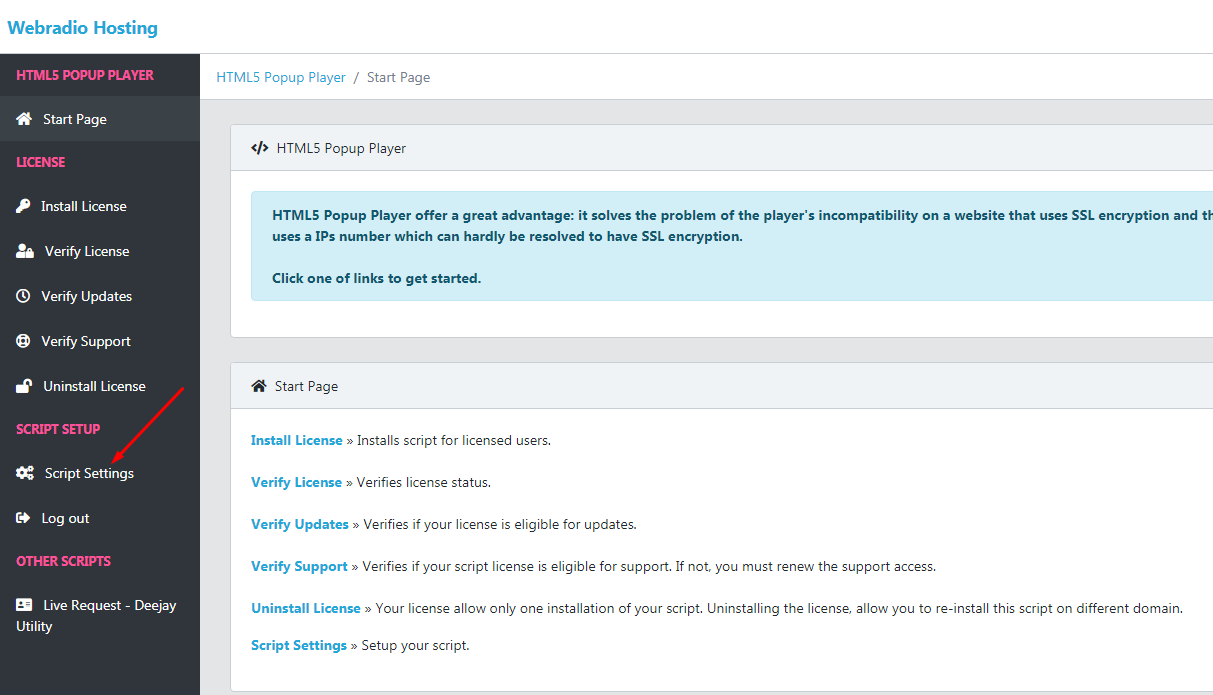
The general script setup page will open.
If you set the script for the first time, a window will appear on the settings page where you will need to enter the script installation link.
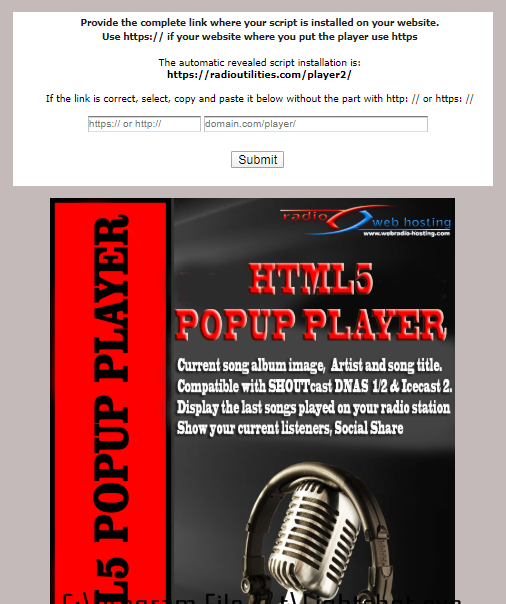
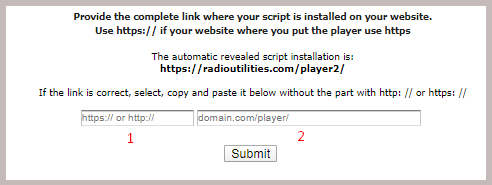
In the first box enter https://
In the second box, like described, copy and paste the automatic revealed link without the part with https://
In our example, the correct information to enter is:
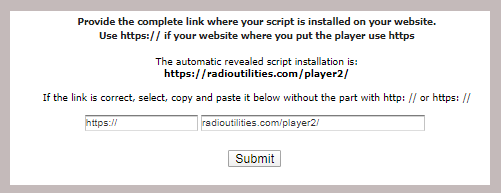
This information is saved and is only required when installing the script.
Then, only the "Change script link" button will appear, which you can use if you change the name of the folder in which the script is installed.
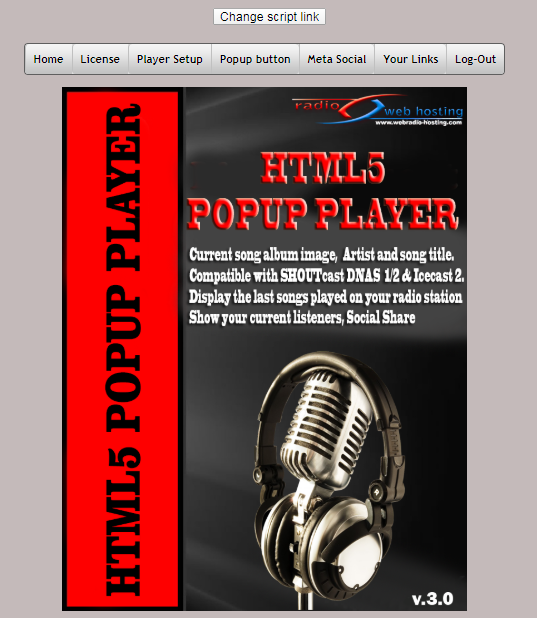
DO NOT CHANGE THE NAME OF ANY SUBFOLDER OF THE SCRIPT BECAUSE IT WILL NO LONGER WORK!
After submit the script link information, click on Player Setup
You will see the default popup button. After you enter all your player information, you can check if all entered data is OK.
Enter and choose the following settings:
- Do you have HTTPS stream link? - Yes
- Which stream you are using ? - Click on the stream type you use
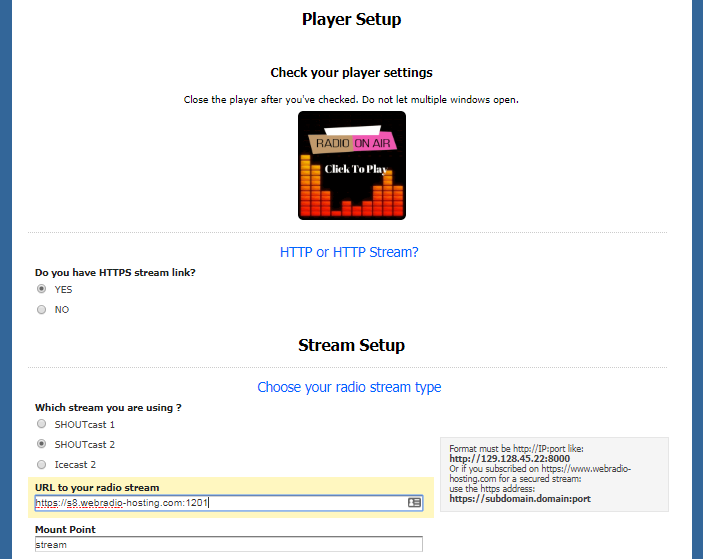
Stream Setup
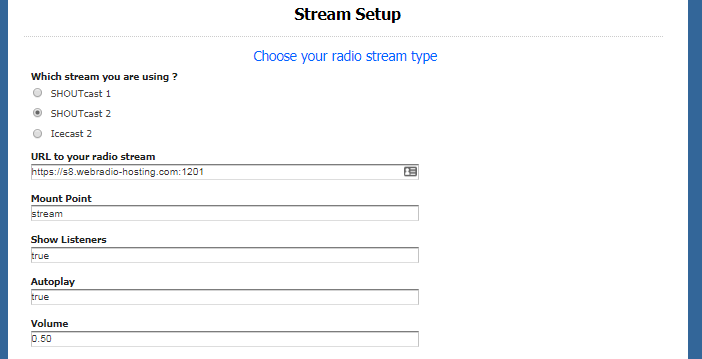
- Choose the stream type
- Enter your stream URL like in the image, without the final slash /
- If you have SHOUTcast v.2 or Icecast v.2, neter the used mountpoint for your stream - Show Listeners - The player can display the number of listeners. Enable this feature putting true or disable putting false
- Autoplay - true or false
- Volume - the value can be from 0.01 to 1.0
Album cover fallback
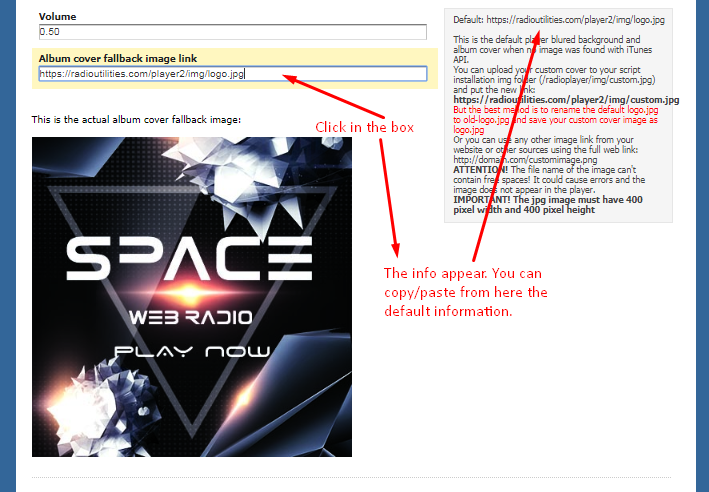
The settings are easy to understand. Each setting has explanations in the right part, when the mouse cursor is above the box where the information is typed.
Continue completing the player settings by entering all needed information in the other settings pages: - Popup Button (if you want to use the pop button on your website)
- Meta Social (important for facebook and twitter share informations)
When you are done, click on the Your Links menu where you will find the HTML codes you can copy and put on any page of your site.